在Android应用开发中,我们经常会使用到动画,提升用户体验,吸引更多用户,在这里我总结当前的常用Android动画。简单来说Android动画总共分为两类,传统动画和属性动画(3.0之后出现)。其中传统动画又分为帧动画(Frame Animation)和补间动画(Tweened Animation)。
传统动画
帧动画
帧动画是最容易实现的一种动画,这种动画更多的依赖于完善的UI资源,他的原理就是将一张张单独的图片连贯的进行播放,从而在视觉上产生一种动画的效果;有点类似于某些软件制作gif动画的方式。帧动画实现
实现方式主要有两种(xml和纯代码),这里只列举xml形式,代码形式只是创建**AnimationDrawable**实例,添加素材对象即可。- 导入帧动画素材(注意素材名称不能为纯数字,不然运行报错)
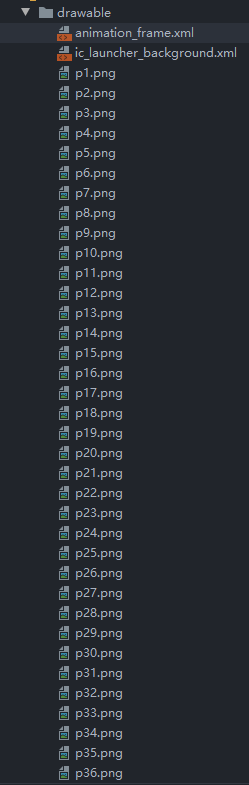
- 创建帧动画文件,在drawable中创建 animation-list类型文件 。
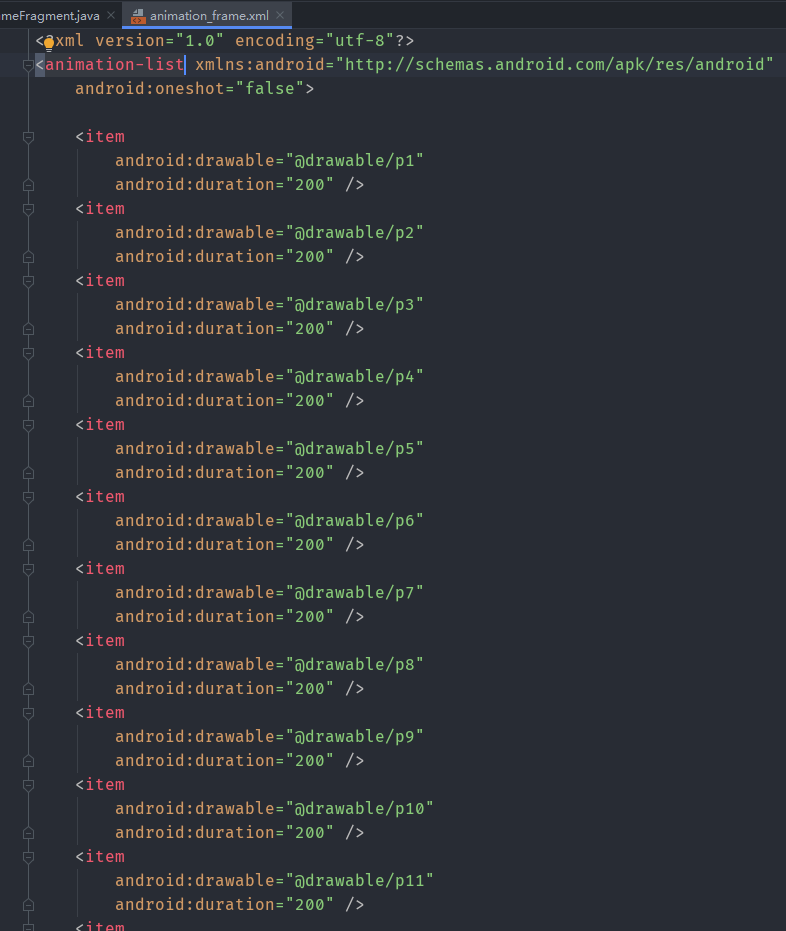
- 布局文件和页面
- 布局文件fragment_frame.xml
<?xml version="1.0" encoding="utf-8"?> <layout xmlns:android="http://schemas.android.com/apk/res/android" xmlns:app="http://schemas.android.com/apk/res-auto"> <androidx.constraintlayout.widget.ConstraintLayout android:layout_width="match_parent" android:layout_height="match_parent"> <androidx.constraintlayout.widget.Guideline android:id="@+id/gl70" android:layout_width="wrap_content" android:layout_height="wrap_content" android:orientation="horizontal" app:layout_constraintGuide_percent="0.6" /> <ImageView android:id="@+id/frame_image" android:layout_width="wrap_content" android:layout_height="wrap_content" android:background="@drawable/animation_frame" app:layout_constraintBottom_toTopOf="@id/gl70" app:layout_constraintLeft_toLeftOf="parent" app:layout_constraintRight_toRightOf="parent" app:layout_constraintTop_toTopOf="parent" /> <Button android:id="@+id/frame_start" android:layout_width="wrap_content" android:layout_height="wrap_content" android:text="@string/tv_start" app:layout_constraintBottom_toBottomOf="parent" app:layout_constraintLeft_toLeftOf="parent" app:layout_constraintRight_toRightOf="parent" app:layout_constraintTop_toBottomOf="@id/gl70" /> </androidx.constraintlayout.widget.ConstraintLayout> </layout> - 页面代码
package com.skwen.animation.fragment;

import android.graphics.drawable.AnimationDrawable;
import android.os.Bundle;
import android.view.LayoutInflater;
import android.view.View;
import android.view.ViewGroup;

import androidx.annotation.NonNull;
import androidx.annotation.Nullable;
import androidx.databinding.DataBindingUtil;
import androidx.fragment.app.Fragment;

import com.skwen.animation.R;
import com.skwen.animation.databinding.FragmentFrameBinding;

public class FrameFragment extends Fragment {

 private FragmentFrameBinding mBinding;

 private boolean isStart;

 @Nullable
 @Override
 public View onCreateView(@NonNull LayoutInflater inflater, @Nullable ViewGroup container, @Nullable Bundle savedInstanceState) {
     mBinding = DataBindingUtil.inflate(inflater, R.layout.fragment_frame, container, false);
     return mBinding.getRoot();
 }

 @Override
 public void onViewCreated(@NonNull View view, @Nullable Bundle savedInstanceState) {
     super.onViewCreated(view, savedInstanceState);
     initViews();
 }

 private void initViews() {
     AnimationDrawable animationDrawable = (AnimationDrawable) mBinding.frameImage.getBackground();

     mBinding.frameStart.setOnClickListener(v -> {
         if (isStart) {
             isStart = false;
             animationDrawable.stop();
             mBinding.frameStart.setText(R.string.tv_start);
         } else {
             isStart = true;
             animationDrawable.start();
             mBinding.frameStart.setText(R.string.tv_stop);
         }
     });

 }
}
- 布局文件fragment_frame.xml
补间动画
补间动画又可以分为四种形式,分别是 **alpha(淡入淡出),translate(位移),scale(缩放大小),rotate(旋转)**。补间动画的实现,一般会采用xml 文件的形式;代码会更容易书写和阅读,同时也更容易复用。淡入淡出
- 在res/anim/ 路径下创建xml动画文件alpha_animation.xml
<?xml version="1.0" encoding="utf-8"?> <alpha xmlns:android="http://schemas.android.com/apk/res/android" android:duration="2000" android:fromAlpha="1.0" android:interpolator="@android:anim/accelerate_decelerate_interpolator" android:repeatCount="infinite" android:repeatMode="reverse" android:toAlpha="0.2" /> <!-- 说明start --> <!-- duration:本次动画持续时间 fromAlpha:动画开始透明度 toAlpha:动画结束透明度 repeatCount:重复次数,infinite-一直重复。数值为int类型 repeatMode:重复模式,restart和reverse。看字面单词意思就行 interpolator:主要作用是可以控制动画的变化速率,就是动画进行的快慢节奏。 Android 系统已经为我们提供了一些Interpolator, 比如 accelerate_decelerate_interpolator, accelerate_interpolator等。 更多的interpolator 及其含义可以在Android SDK 中查看。 同时这个Interpolator也是可以自定义的。 --> <!-- 说明end --> - 页面布局View
<ImageView android:id="@+id/bottom_right_img" android:layout_width="wrap_content" android:layout_height="wrap_content" android:src="@mipmap/ic_pyramid" app:layout_constraintBottom_toBottomOf="parent" app:layout_constraintLeft_toRightOf="@id/v50" app:layout_constraintRight_toRightOf="parent" app:layout_constraintTop_toBottomOf="@id/h50" /> - 页面使用
Animation animationAlpha = AnimationUtils.loadAnimation(getContext(), R.anim.alpha_animation);
mBinding.bottomRightImg.startAnimation(animationAlpha);
位移动画
- 在res/anim/ 路径下创建xml动画文件translate_animation.xml
<?xml version="1.0" encoding="utf-8"?> <translate xmlns:android="http://schemas.android.com/apk/res/android" android:duration="2000" android:fromXDelta="0" android:fromYDelta="0" android:repeatCount="infinite" android:repeatMode="reverse" android:toXDelta="300" android:toYDelta="0" /> <!-- 说明start --> <!-- duration:本次动画持续时间 fromXDelta:动画起始时 X坐标上的位置 fromYDelta:动画起始时 Y坐标上的位置 toXDelta:动画结束时 X坐标上的位置 toYDelta:动画结束时 Y坐标上的位置 repeatCount:重复次数,infinite-一直重复。数值为int类型。 repeatMode:重复模式,restart和reverse。看字面单词意思就行。 --> <!-- 说明end --> - 页面View使用
Animation animationTranslate = AnimationUtils.loadAnimation(getContext(), R.anim.translate_animation);
mBinding.topLeftImg.startAnimation(animationTranslate);
缩放大小
- 在res/anim/ 路径下创建xml动画文件scale_animation.xml
<?xml version="1.0" encoding="utf-8"?> <scale xmlns:android="http://schemas.android.com/apk/res/android" android:duration="3000" android:fromXScale="0.5" android:fromYScale="0.5" android:pivotX="50%" android:pivotY="50%" android:repeatCount="infinite" android:repeatMode="reverse" android:toXScale="2.0" android:toYScale="2.0" /> <!-- 说明start --> <!-- duration:本次动画持续时间 fromXScale:动画起始时 X轴缩放比例 fromYScale:动画起始时 Y轴缩放比例 toXScale:动画结束时 X轴缩放比例 toYScale:动画结束时 Y轴缩放比例 pivotX:缩放起点X轴坐标,数值,百分比 pivotY:缩放起点Y轴坐标,数值,百分比 repeatCount:重复次数,infinite-一直重复。数值为int类型。 repeatMode:重复模式,restart和reverse。看字面单词意思就行。 --> <!-- 说明end --> - 页面View使用
Animation animationScale = AnimationUtils.loadAnimation(getContext(), R.anim.scale_animation);
mBinding.topRightImg.startAnimation(animationScale);
旋转动画
- 在res/anim/ 路径下创建xml动画文件scale_animation.xml
<?xml version="1.0" encoding="utf-8"?> <rotate xmlns:android="http://schemas.android.com/apk/res/android" android:duration="3000" android:fromDegrees="0" android:pivotX="50%" android:pivotY="50%" android:repeatCount="infinite" android:repeatMode="reverse" android:toDegrees="1080" /> <!-- 说明start --> <!-- duration:本次动画持续时间 fromDegrees:旋转开始角度,正代表顺时针度数,负代表逆时针度数 toDegrees:旋转结束角度,正代表顺时针度数,负代表逆时针度数 pivotX:缩放起点X轴坐标,数值,百分比 pivotY:缩放起点Y轴坐标,数值,百分比 repeatCount:重复次数,infinite-一直重复。数值为int类型。 repeatMode:重复模式,restart和reverse。看字面单词意思就行。 --> <!-- 说明end --> - 页面View使用
Animation animationRotate = AnimationUtils.loadAnimation(getContext(), R.anim.rotate_animation);
mBinding.bottomLeftImg.startAnimation(animationRotate);
补间动画组合
- 在res/anim/ 路径下创建xml动画文件tween_animation.xml
<?xml version="1.0" encoding="utf-8"?> <set xmlns:android="http://schemas.android.com/apk/res/android"> <translate android:duration="2000" android:fromXDelta="0" android:fromYDelta="0" android:repeatCount="infinite" android:repeatMode="reverse" android:toXDelta="200" android:toYDelta="0" /> <scale android:duration="2000" android:fromXScale="0.5" android:fromYScale="0.5" android:pivotX="50%" android:pivotY="50%" android:repeatCount="infinite" android:repeatMode="reverse" android:toXScale="2.0" android:toYScale="2.0" /> <alpha android:duration="4000" android:fromAlpha="1.0" android:interpolator="@android:anim/accelerate_decelerate_interpolator" android:repeatCount="infinite" android:repeatMode="reverse" android:toAlpha="0.2" /> <rotate android:duration="2000" android:fromDegrees="0" android:pivotX="50%" android:pivotY="50%" android:repeatCount="infinite" android:repeatMode="reverse" android:toDegrees="1080" /> </set> - 页面View使用
Animation animationTween = AnimationUtils.loadAnimation(getContext(), R.anim.tween_animation);
mBinding.middleImg.startAnimation(animationTween);
注意事项
补间动画执行之后并未改变View的真实布局属性值。切记这一点,譬如我们在Activity中有一个 Button在屏幕上方,我们设置了平移动画移动到屏幕下方然后保持动画最后执行状态呆在屏幕下方,这时如果点击屏幕下方动画执行之后的Button是没有任何反应的,而点击原来屏幕上方没有Button的地方却响应的是点击Button的事件。在进行动画的时候,尽量使用dp,因为px会导致适配问题。属性动画
属性动画,顾名思义它是对于对象属性的动画。因此,所有补间动画的内容,都可以通过属性动画实现。实现补间动画实例(按上面顺序)
- 淡入淡出
//渐变 ObjectAnimator alphaAnimator = ObjectAnimator.ofFloat(mBinding.bottomRightImg, "alpha", 1f, 0.2f); alphaAnimator.setDuration(2000); alphaAnimator.setRepeatCount(ValueAnimator.INFINITE); alphaAnimator.setRepeatMode(ValueAnimator.REVERSE); alphaAnimator.start(); - 位移动画
//X轴平移,Y轴平移使用translationX属性即可。同时XY平移,使用AnimatorSet包含两个属性动画一起即可。 ObjectAnimator translateAnimator = ObjectAnimator.ofFloat(mBinding.topLeftImg, "translationX", 0f, 300f); translateAnimator.setDuration(2000); translateAnimator.setRepeatCount(ValueAnimator.INFINITE); translateAnimator.setRepeatMode(ValueAnimator.REVERSE); translateAnimator.start(); - 缩放大小
//缩放大小 ObjectAnimator scaleXAnimator = ObjectAnimator.ofFloat(mBinding.topRightImg, "scaleX", 0.5f, 2f); scaleXAnimator.setDuration(2000); scaleXAnimator.setRepeatCount(ValueAnimator.INFINITE); scaleXAnimator.setRepeatMode(ValueAnimator.REVERSE); ObjectAnimator scaleYAnimator = ObjectAnimator.ofFloat(mBinding.topRightImg, "scaleY", 0.5f, 2f); scaleYAnimator.setDuration(2000); scaleYAnimator.setRepeatCount(ValueAnimator.INFINITE); scaleYAnimator.setRepeatMode(ValueAnimator.REVERSE); AnimatorSet scaleAnimatorSet = new AnimatorSet(); //或者使用:scaleAnimatorSet.play(scaleXAnimator).with(scaleYAnimator);同下 scaleAnimatorSet.playTogether(scaleXAnimator, scaleYAnimator); scaleAnimatorSet.start(); - 旋转动画
//旋转动画 ObjectAnimator rotationAnimator = ObjectAnimator.ofFloat(mBinding.bottomLeftImg, "rotation", 0f, 360f); rotationAnimator.setDuration(2000); rotationAnimator.setRepeatCount(ValueAnimator.INFINITE); rotationAnimator.setRepeatMode(ValueAnimator.REVERSE); rotationAnimator.start(); - 组合
//组合动画accelerateDecelerateInterpolator
       ObjectAnimator alphaSetAnimator = ObjectAnimator.ofFloat(mBinding.middleImg, "alpha", 1f, 0.2f);
       alphaSetAnimator.setDuration(4000);
       alphaSetAnimator.setInterpolator(new AccelerateDecelerateInterpolator());
       alphaSetAnimator.setRepeatCount(ValueAnimator.INFINITE);
       alphaSetAnimator.setRepeatMode(ValueAnimator.REVERSE);
       ObjectAnimator translateXSetAnimator = ObjectAnimator.ofFloat(mBinding.middleImg, "translationX", 0f, 300f);
       translateXSetAnimator.setDuration(2000);
       translateXSetAnimator.setRepeatCount(ValueAnimator.INFINITE);
       translateXSetAnimator.setRepeatMode(ValueAnimator.REVERSE);
       ObjectAnimator translateYSetAnimator = ObjectAnimator.ofFloat(mBinding.middleImg, "translationY", 0f, 300f);
       translateYSetAnimator.setDuration(2000);
       translateYSetAnimator.setRepeatCount(ValueAnimator.INFINITE);
       translateYSetAnimator.setRepeatMode(ValueAnimator.REVERSE);
       ObjectAnimator scaleXSetAnimator = ObjectAnimator.ofFloat(mBinding.middleImg, "scaleX", 0.5f, 2f);
       scaleXSetAnimator.setDuration(2000);
       scaleXSetAnimator.setRepeatCount(ValueAnimator.INFINITE);
       scaleXSetAnimator.setRepeatMode(ValueAnimator.REVERSE);
       ObjectAnimator scaleYSetAnimator = ObjectAnimator.ofFloat(mBinding.middleImg, "scaleY", 0.5f, 2f);
       scaleYSetAnimator.setDuration(2000);
       scaleYSetAnimator.setRepeatCount(ValueAnimator.INFINITE);
       scaleYSetAnimator.setRepeatMode(ValueAnimator.REVERSE);
       ObjectAnimator rotationSetAnimator = ObjectAnimator.ofFloat(mBinding.middleImg, "rotation", 0f, 1080);
       rotationSetAnimator.setDuration(2000);
       rotationSetAnimator.setRepeatCount(ValueAnimator.INFINITE);
       rotationSetAnimator.setRepeatMode(ValueAnimator.REVERSE);
       AnimatorSet animatorSet = new AnimatorSet();
       animatorSet.playTogether(alphaSetAnimator, translateXSetAnimator, translateYSetAnimator, scaleXSetAnimator, scaleYSetAnimator, rotationSetAnimator);
       animatorSet.start();
以上就是使用属性动画实现补间动画效果实例。实例中setDuration、setRepeatMode及setRepeatCount和补间动画中的概念是一样的。可以看到,属性动画貌似强大了许多,实现很方便,同时动画可变化的值也有了更多的选择,动画所能呈现的细节也更多,并且可以组合实现。
属性动画核心原理
在上面实现属性动画的时候,我们反复的使用到了ObjectAnimator 这个类,这个类继承自ValueAnimator,使用这个类可以对任意对象的**任意属性**进行动画操作。而ValueAnimator是整个属性动画机制当中最核心的一个类;这点从下面的图片也可以看出: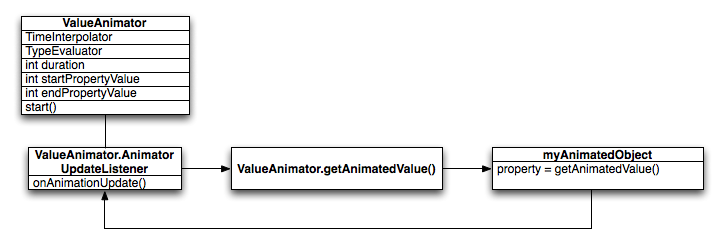
属性动画核心原理,此图来自于Android SDK API 文档。
属性动画的运行机制是通过不断地对值进行操作来实现的,而初始值和结束值之间的动画过渡就是由ValueAnimator这个类来负责计算的。它的内部使用一种时间循环的机制来计算值与值之间的动画过渡,我们只需要将初始值和结束值提供给ValueAnimator,并且告诉它动画所需运行的时长,那么ValueAnimator就会自动帮我们完成从初始值平滑地过渡到结束值这样的效果。除此之外,ValueAnimator还负责管理动画的播放次数、播放模式、以及对动画设置监听器等。从上图我们可以了解到,通过duration、startPropertyValue和endPropertyValue 等值,我们就可以定义动画运行时长,初始值和结束值。然后通过start方法开始动画。那么ValueAnimator 到底是怎样实现从初始值平滑过渡到结束值的呢?这个就是由TypeEvaluator 和TimeInterpolator 共同决定的。具体来说,TypeEvaluator 决定了动画如何从初始值过渡到结束值。TimeInterpolator 决定了动画从初始值过渡到结束值的节奏。例如:你每天早晨出门去公司上班,TypeEvaluator决定了你的出行方式到底是坐公交、坐地铁还是骑车;而当你决定骑车后,TimeInterpolator决定了你一路上骑行的方式,你可以匀速的一路骑到公司,你也可以前半程骑得飞快,后半程骑得慢悠悠。
属性动画自定义实现
需求:让一个圆点按照自定义的点运行,并且按规律改变圆点半径。
用TypeEvaluator 确定运动轨迹
按照上面的说明,我们先自定义TypeEvaluator,决定我们的动画怎么从开始开始过渡到结束。
public class CirclePointTypeEvaluator implements TypeEvaluator<PointF> {

    /**
     * PointSinEvaluator 继承了TypeEvaluator类,并实现了他唯一的方法evaluate;
     * 这里我们的逻辑很简单,x的值随着fraction 不断变化,并最终达到结束值;
     * y的值就是当前x值所对应的sin(x) 值,然后用x 和 y 产生一个新的点(Point对象)返回。
     *
     * @param fraction   代表当前动画完成的百分比,这个值是如何变化的后面还会提到;
     * @param startValue 动画的初始值
     * @param endValue   动画的结束值
     * @return 点坐标
     */
    @Override
    public PointF evaluate(float fraction, PointF startValue, PointF endValue) {
        float x = startValue.x + fraction * (endValue.x - startValue.x);

        float y = (float) (Math.sin(x * Math.PI / 180) * 100) + endValue.y / 2;

        Log.d("point", "x:" + x + "  y:" + y);
        return new PointF(x, y);
    }
}
通过自定义的CirclePointTypeEvaluator,我们可以使用ValueAnimator valueAnimator = ValueAnimator.ofObject(new CirclePointTypeEvaluator(), startP, endP); 生成动画。
使用ObjectAnimator 可以对任意对象的任意属性进行动画操作,前提条件是,这个属性必须有get和set方法。
在我们的自定义view中,我们增加了两个属性:
    private float radius = 20;

    private int color;

    public float getRadius() {
        return radius;
    }

    public void setRadius(float radius) {
        this.radius = radius;
    }

    public int getColor() {
        return color;
    }

    public void setColor(int color) {
        this.color = color;
    }
这样我们就可以使用ObjectAnimator 为这个view的两个属性赋值,生成相应动画效果了。
完整的自定义view类:
package com.skwen.animation.custom;

import android.animation.AnimatorSet;
import android.animation.ArgbEvaluator;
import android.animation.ObjectAnimator;
import android.animation.ValueAnimator;
import android.content.Context;
import android.graphics.Canvas;
import android.graphics.Color;
import android.graphics.Paint;
import android.graphics.PointF;
import android.util.AttributeSet;
import android.view.View;
import android.view.animation.DecelerateInterpolator;

import androidx.annotation.Nullable;

public class CirclePointView extends View {

    private Paint mPointPaint, mCirclePaint;

    private PointF mCurrentPoint;

    public static final int RADIUS = 20;

    private float radius = 20;

    private int color;

    private AnimatorSet animSet;

    public CirclePointView(Context context) {
        super(context);
        init();
    }

    public CirclePointView(Context context, @Nullable AttributeSet attrs) {
        super(context, attrs);
        init();
    }

    public CirclePointView(Context context, @Nullable AttributeSet attrs, int defStyleAttr) {
        super(context, attrs, defStyleAttr);
        init();
    }

    private void init() {
        mPointPaint = new Paint(Paint.ANTI_ALIAS_FLAG);
        mPointPaint.setStrokeWidth(8f);
        mPointPaint.setColor(Color.BLACK);

        mCirclePaint = new Paint(Paint.ANTI_ALIAS_FLAG);
        mCirclePaint.setColor(Color.TRANSPARENT);
    }

    @Override
    protected void onDraw(Canvas canvas) {
        if (mCurrentPoint == null) {
            mCurrentPoint = new PointF(RADIUS, RADIUS);
        }
        canvas.drawCircle(mCurrentPoint.x, mCurrentPoint.y, radius, mCirclePaint);
        drawLine(canvas);
    }

    private void drawLine(Canvas canvas) {
        canvas.drawLine(10, getHeight() / 2, getWidth(), getHeight() / 2, mPointPaint);
        canvas.drawLine(10, getHeight() / 2 - 150, 10, getHeight() / 2 + 150, mPointPaint);
        canvas.drawPoint(mCurrentPoint.x, mCurrentPoint.y, mPointPaint);
    }

    public float getRadius() {
        return radius;
    }

    public void setRadius(float radius) {
        this.radius = radius;
    }

    public int getColor() {
        return color;
    }

    public void setColor(int color) {
        this.color = color;
        mCirclePaint.setColor(this.color);
    }

    public void startAnimation() {
        PointF startP = new PointF(RADIUS, RADIUS);
        PointF endP = new PointF(getWidth() - RADIUS, getHeight() - RADIUS);
        final ValueAnimator valueAnimator = ValueAnimator.ofObject(new CirclePointTypeEvaluator(), startP, endP);
        valueAnimator.setRepeatCount(ValueAnimator.INFINITE);
        valueAnimator.setRepeatMode(ValueAnimator.REVERSE);
        valueAnimator.addUpdateListener(animation -> {
            mCurrentPoint = (PointF) animation.getAnimatedValue();
            postInvalidate();
        });

        ObjectAnimator animColor = ObjectAnimator.ofObject(this, "color", new ArgbEvaluator(), Color.GREEN,
                Color.YELLOW, Color.BLUE, Color.WHITE, Color.RED);
        animColor.setRepeatCount(ValueAnimator.INFINITE);
        animColor.setRepeatMode(ValueAnimator.REVERSE);

        ObjectAnimator animScale = ObjectAnimator.ofFloat(this, "radius", 10f, 20f, 30f, 40f, 30f, 20f, 10f);
        animScale.setRepeatCount(ValueAnimator.INFINITE);
        animScale.setRepeatMode(ValueAnimator.REVERSE);
        animScale.setDuration(5000);

        animSet = new AnimatorSet();
        animSet.play(valueAnimator).with(animColor).with(animScale);
        animSet.setDuration(5000);
        animSet.setInterpolator(new DecelerateInterpolator());
        animSet.start();
    }

    public void pauseAnimation() {
        if (animSet != null) {
            animSet.pause();
        }
    }

    public void stopAnimation() {
        if (animSet != null) {
            animSet.cancel();
            this.clearAnimation();
        }
    }
}
在布局中引用此view即可。
动画启动与关闭
        mBinding.circlePointView.setColor(Color.BLUE);
        mBinding.circlePointView.setRadius(20f);
        mBinding.circlePointView.startAnimation();

        //结束页面时调用
        mBinding.circlePointView.stopAnimation();
简单列举一下当前的插值器(Interpolator):
| java类 | xml | 描述 |
|---|---|---|
| AccelerateDecelerateInterpolator | @android:anim/accelerate_decelerate_interpolator | 动画始末速率较慢,中间加速 |
| AccelerateInterpolator | @android:anim/accelerate_interpolator | 动画开始速率较慢,之后慢慢加速 |
| AnticipateInterpolator | @android:anim/anticipate_interpolator | 开始的时候从后向前甩 |
| AnticipateOvershootInterpolator | @android:anim/anticipate_overshoot_interpolator | 类似上面AnticipateInterpolator |
| BounceInterpolator | @android:anim/bounce_interpolator | 动画结束时弹起 |
| CycleInterpolator | @android:anim/cycle_interpolator | 循环播放速率改变为正弦曲线 |
| DecelerateInterpolator | @android:anim/decelerate_interpolator | 动画开始快然后慢 |
| LinearInterpolator | @android:anim/linear_interpolator | 动画匀速改变 |
| OvershootInterpolator | @android:anim/overshoot_interpolator | 向前弹出一定值之后回到原来位置 |
基础差不多就这么多,需要注意一点:属性动画效果会改变控件的位置.且开启动画的是动画对象,而不是控件对象.
总结
相对传统动画,属性动画无论是使用方便上以及动画效果上看,属性动画优势明显。但是,存在即合理。各自都有各自的优势,请看以下说明:
- 在补间动画中,虽然使用translate将view移动了,但是点击原来的位置,依旧可以发生点击事件(不知道的请自行验证),而属性动画却不是。属性动画是真正的实现了view的移动,补间动画对view的移动更像是在不同地方绘制了一个影子,实际的对象还是处于原来的地方。
- 当我们把动画的repeatCount设置为无限循环时,如果在Activity退出时没有及时将动画停止,属性动画会导致Activity无法释放而导致内存泄漏(属性动画的值一直处于update状态),而补间动画却没有问题。使用属性动画时记得在Activity执行 onStop 方法时顺便将动画停止。
- xml 文件实现的补间动画,复用率极高。在Activity切换,窗口弹出时等情景中有着很好的效果。
- 使用帧动画时需要注意,不要使用过多特别大的图,容易导致内存不足。